How To Reset Surface Laptop Checklist (Step-By-Step Guide)
Resetting a Surface Laptop can solve slow performance, software glitches, or persistent errors. Whether you are preparing your device for resale or simply troubleshooting, knowing the proper reset method is essential. This guide provides a complete How To Reset Surface Laptop Checklist (Step-By-Step Guide) to ensure a smooth and safe reset process.
Why Resetting Your Surface Laptop Is Important
Resetting your Surface Laptop restores its original settings, clears corrupted files, and resolves system issues.
Restore Performance
Over time, applications, cached files, and updates can slow your device. A reset clears clutter, improving speed.
Fix Persistent Errors
If your Surface Laptop frequently crashes, freezes, or experiences software errors, a reset can resolve these issues effectively.
Prepare for Resale or Transfer
Resetting erases all personal data, making it ready for a new user without privacy concerns.
Pre-Reset Checklist
Before you reset, there are a few critical steps to ensure your data is safe and the process is smooth.

Back Up Your Data
Always back up files, photos, and documents to an external drive or cloud storage. This protects your information from accidental loss.
Charge Your Device
Make sure your Surface Laptop has at least 50% battery or is plugged in to prevent shutdown during the reset.
Note Installed Applications
Create a list of essential apps you need to reinstall after the reset. This saves time later.
Sign Out of Accounts
Sign out from Microsoft accounts, email apps, tech basics and other connected services to avoid syncing issues post-reset.
Step-By-Step Guide To Reset Surface Laptop
Follow these steps carefully to reset your Surface Laptop successfully.
Open Settings
Go to the Start menu and select Settings. Navigate to System, then Recovery.
Choose Reset Option
Click Reset this PC. You will see two options: Keep my files or Remove everything.
-
Keep my files: Removes apps and settings but keeps personal files.
-
Remove everything: Fully resets the device, erasing all data and installed apps.
Follow On-Screen Prompts
After selecting your reset option, follow the instructions. Your device may restart multiple times.
Confirm Reset
The system will ask for confirmation. Ensure you have backed up important data before proceeding.
Wait for Reset Completion
Reset time varies based on the device and chosen option. Avoid interrupting the process.
Troubleshooting Common Reset Issues
Sometimes, resetting may encounter errors or take longer than expected.
Device Not Resetting
Ensure your Surface Laptop is plugged in and has sufficient battery. A low charge can halt the process.
Reset Stuck
If the reset is stuck, try performing a hard reset by holding the power button for 10 seconds, then retry.
Post-Reset Setup Errors
After reset, follow Windows setup carefully. Connect to the internet to sync Microsoft accounts and restore settings.
For more detailed troubleshooting, check guides on device troubleshooting basics to fix specific issues.
Additional Tips For Surface Laptop Maintenance
Resetting is just one part of keeping your laptop optimized. Follow these tips to maintain smooth performance:
-
Regularly update Windows and drivers.
-
Keep storage clean by deleting unused files.
-
Avoid installing unnecessary software.
-
Learn more about how to reset surface laptop features to maintain performance.
Understanding tech basics can also help prevent repeated issues, keeping your device functional longer.
Resetting your Surface Laptop can restore speed, fix errors, and prepare it for new use. By following this How To Reset Surface Laptop Checklist (Step-By-Step Guide), you can reset safely without losing important data.
Take control of your device today and ensure optimal performance. For ongoing support and troubleshooting tips, explore resources on device troubleshooting basics to enhance your experience.
FAQ
How long does it take to reset a Surface Laptop?
A reset usually takes 30–60 minutes, depending on storage size and chosen options.
Can I reset my Surface Laptop without losing files?
Yes, select Keep my files during the reset to retain personal documents while removing apps and settings.
Will a reset remove viruses from my Surface Laptop?
A full reset that removes everything can eliminate most software-related malware and viruses.
Do I need a Microsoft account to reset my Surface Laptop?
No, but signing in post-reset helps restore apps and settings linked to your account.
What should I do if my Surface Laptop won’t reset?
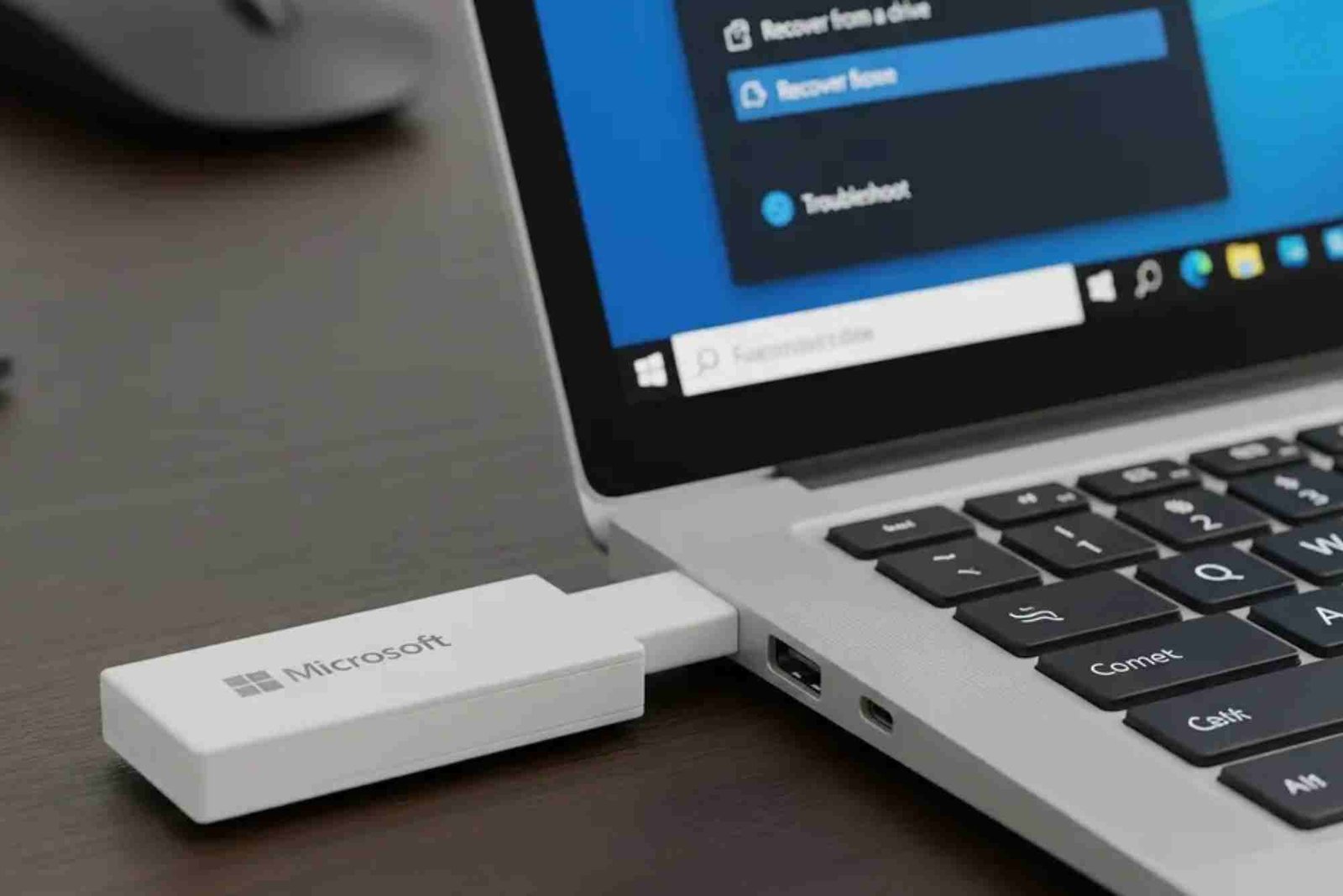
Check power supply, perform a hard reset, and if necessary, use recovery media to reinstall Windows.
Related Reading: How To Screenshot On Envy Laptop Checklist (Step-By-Step Guide)